

UX/UI case study · concept
Bravo C2
A counter-drone command console, designed five times over. Each version answers what the last one taught me: what a stressed operator needs to see, what they never need, and how to keep a human firmly in charge of every engagement.
- 5working versions, each kept for comparison
- 8safety checks guarding every engagement
- 6usability tasks scripted and run on every version
- 0automated WCAG violations across all tested states
- 37→3key presses from threat to response, after the screen reader walkthrough
The brief
Seconds to decide, no room for error
Counter-drone operators watch a sky full of tracks. Most are birds, aircraft and friendly drones. A few are hostile, and some of those are minutes or seconds from the site they protect. The operator has to find the one that matters, confirm what it is, choose a response and authorise it, often while flying a drone of their own.
I set out to design a command-and-control console for that job, to explore the kind of work land-based air defence programmes need: dense information that stays calm, and a decision flow that is fast but very hard to get wrong.
Detect
Rank every track by time to the site so the next threat is always at the top.
Identify
Cue the camera, compare the system's suggestion with the evidence, and let the operator make the call.
Decide and act
Recommend a response, explain why, and make authorising a deliberate act that can still be stopped.
Iterations
Five versions, one direction
I kept every version live so they can be compared side by side. Choose a version to see what changed and why.
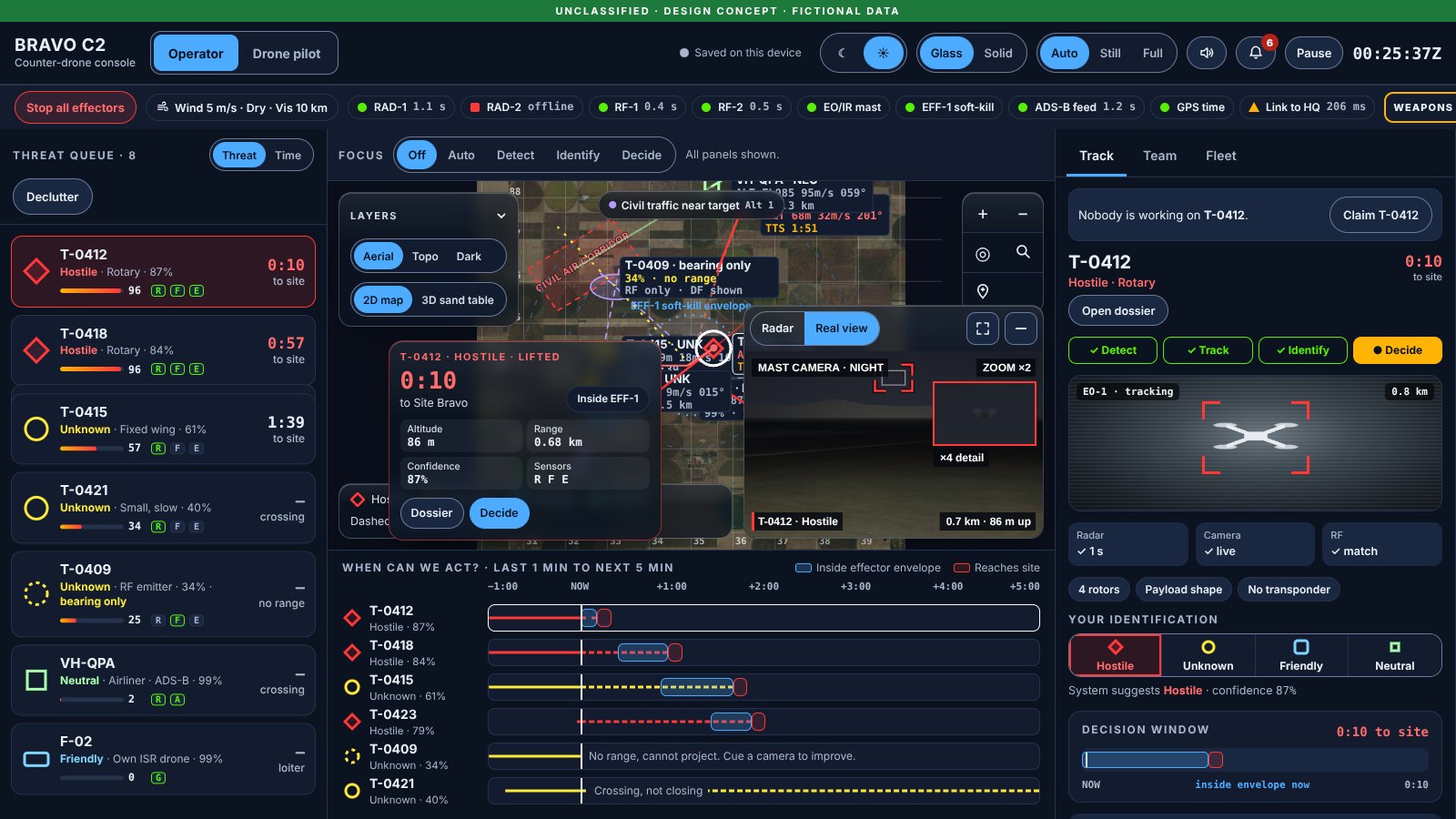
V1 Original
Prove the core flow works: find the threat, identify it, respond, and fly a drone to see it.
- Threat queue sorted by time to site
- Tactical map with radar, RF and camera coverage
- Camera cue and identification with system suggestion
- Press-and-hold authorise with a recommended response
- Pilot mode with keyboard flight and return home
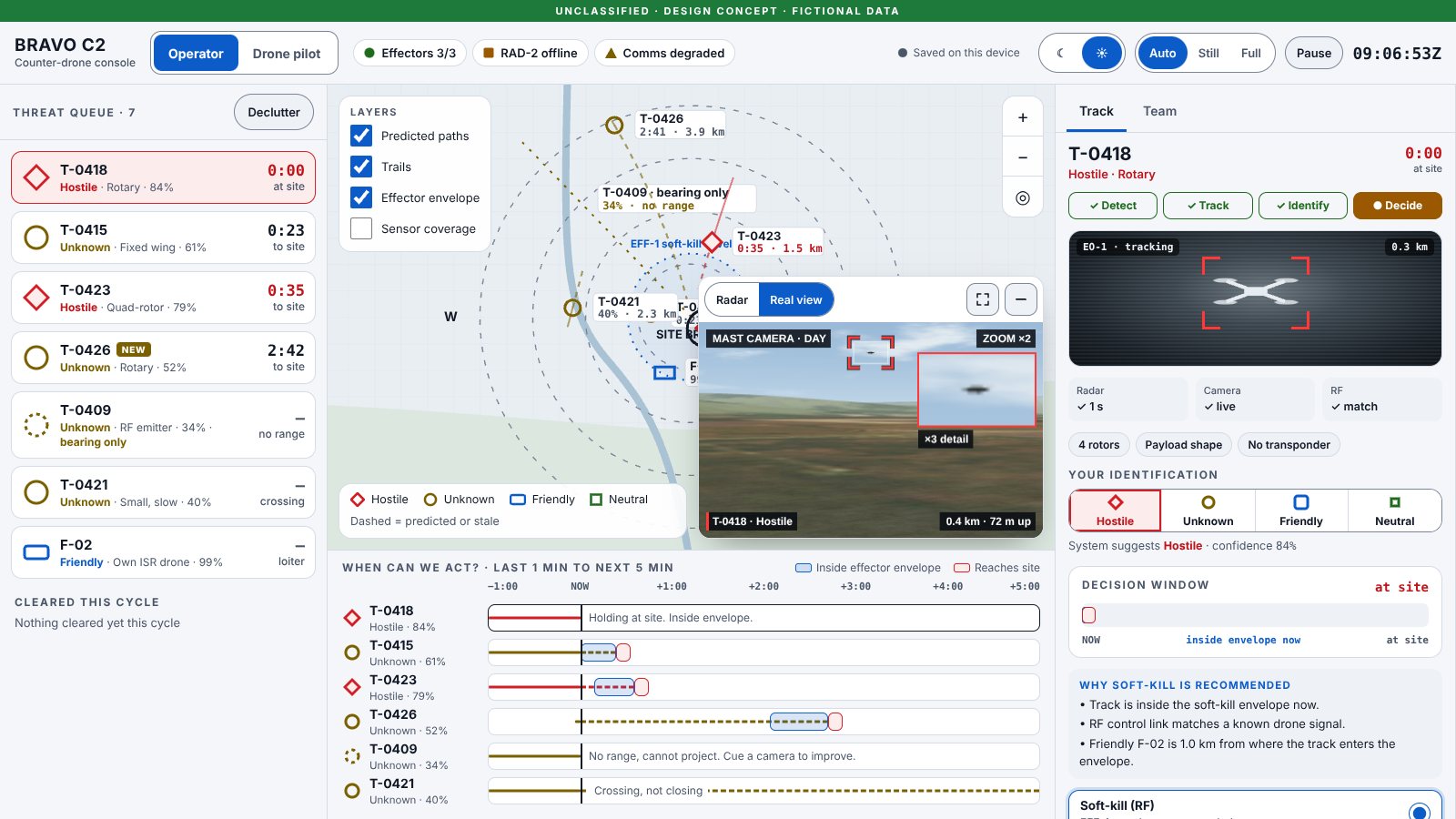
V2 Pro
Give experienced operators more evidence without slowing down beginners.
- 3D sand table of the terrain
- Threat score alongside time to site
- Track dossier with evidence and history
- Live map tiles: topo, satellite and dark
- Light and dark themes
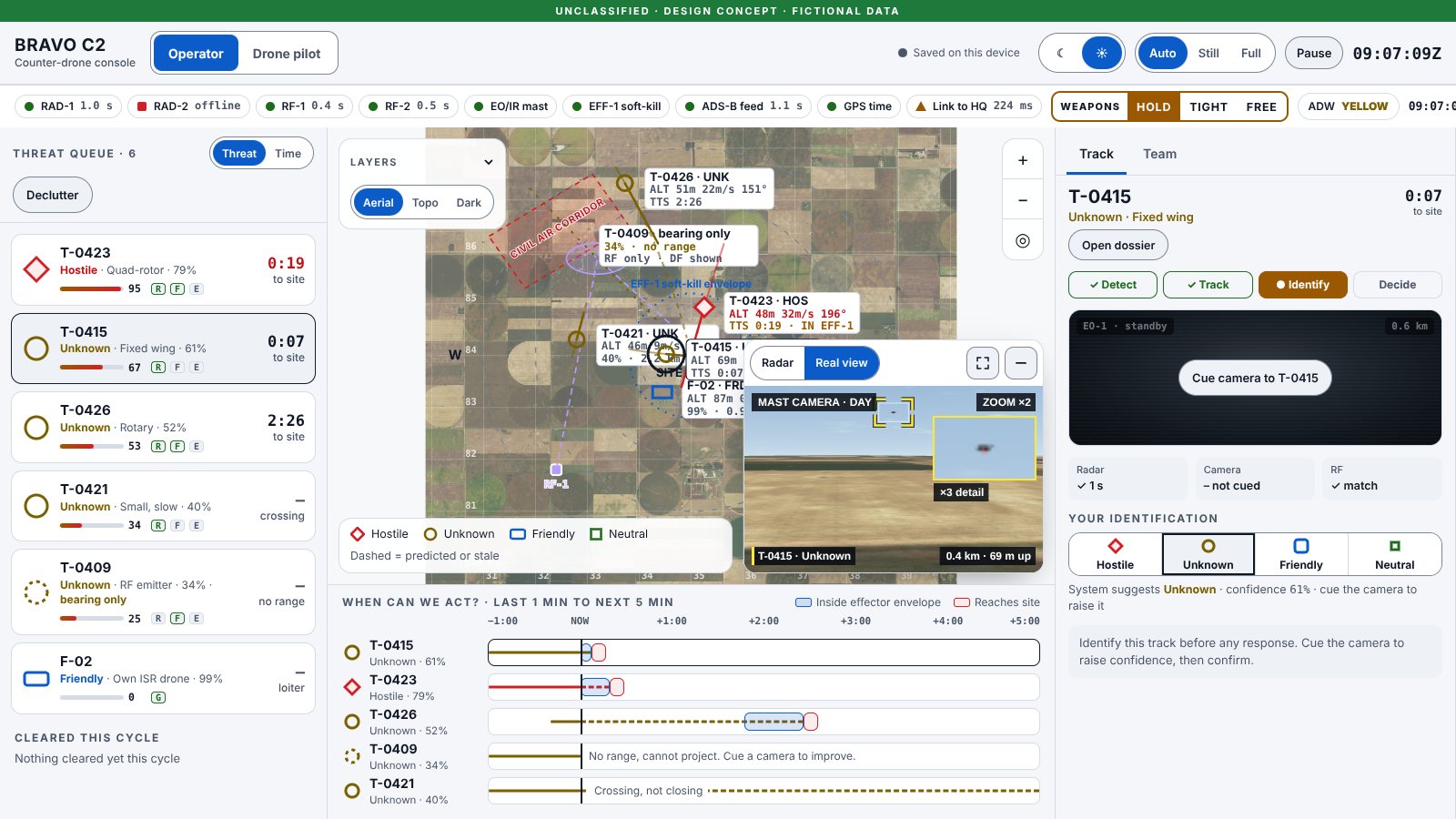
V3 Glass
The screen was busy and nothing stopped a bad engagement. Remove what does nothing, and add real safeguards.
- Translucent information panels, contrast measured
- Friendly-fire, stale track and ROE checks
- 5 second abort window and emergency stop
- Lost link handling
- Controls hidden when they do nothing, duplicates removed
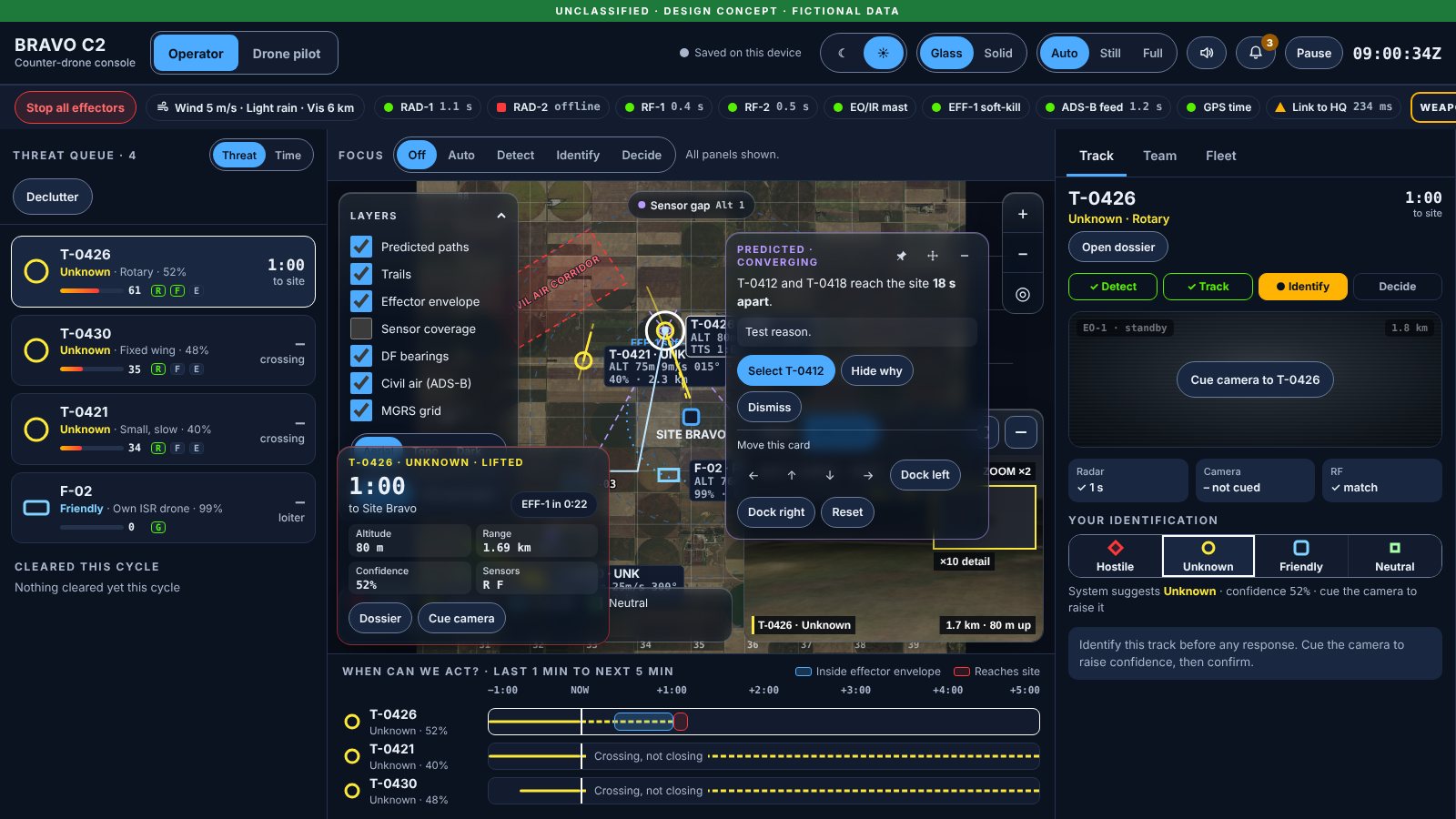
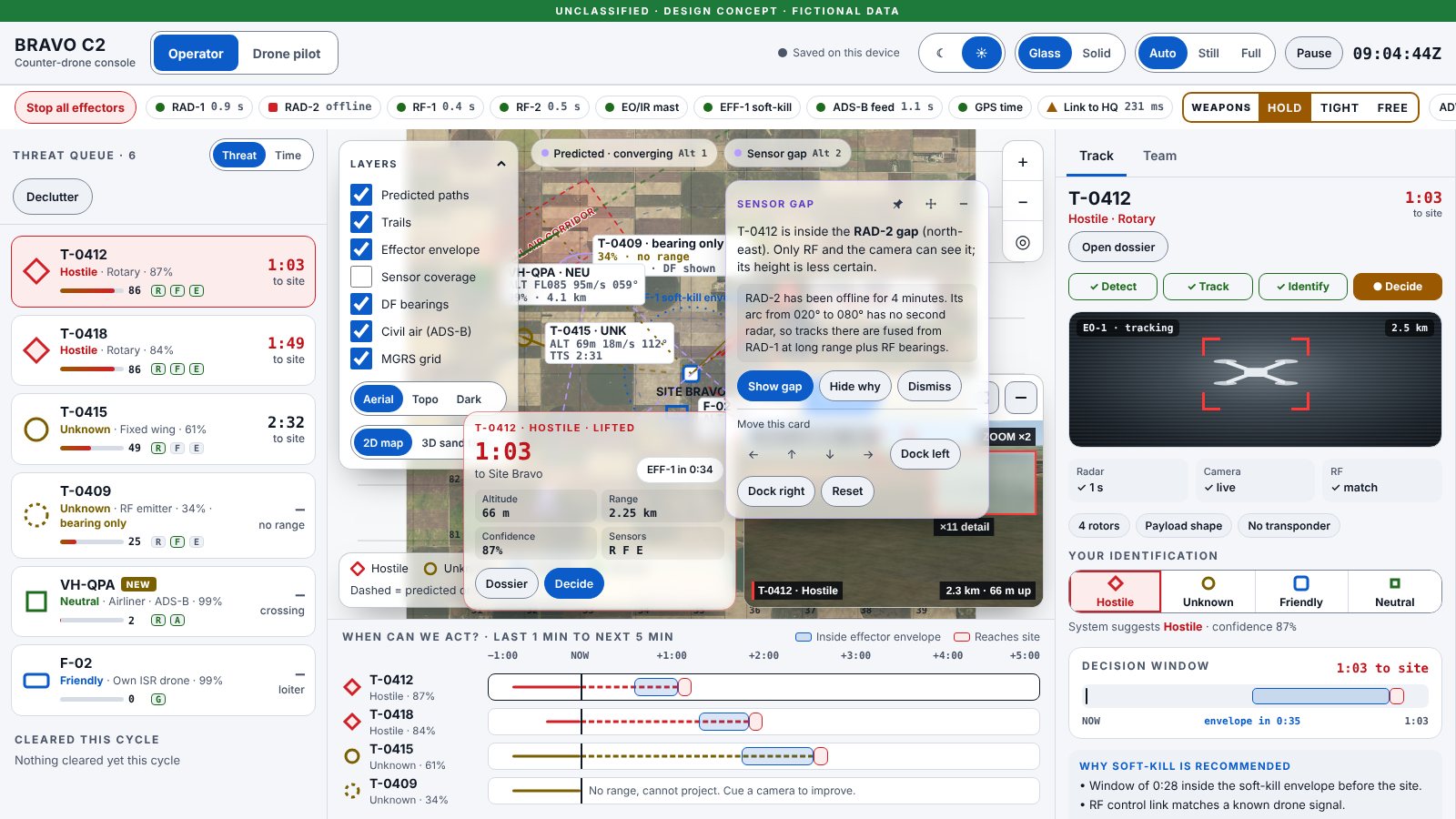
V4 Focus
Inspired by an award-winning integrated control centre: show only what the current step needs, and tell the operator when something changes.
- Focus by step: detect, identify, decide
- Notification centre with acknowledge
- Quiet alert sounds with an off switch
- Own drone fleet with patrol and battery
- Weather and conditions that affect sensors
V5 Team
Operators work in crews. Make it clear who owns which track, and make shift handover safe.
- Track claims so two people never act on one threat
- Live cursors and map marks for the crew
- Shift handover brief
- Map magnifier, 3D sensor coverage
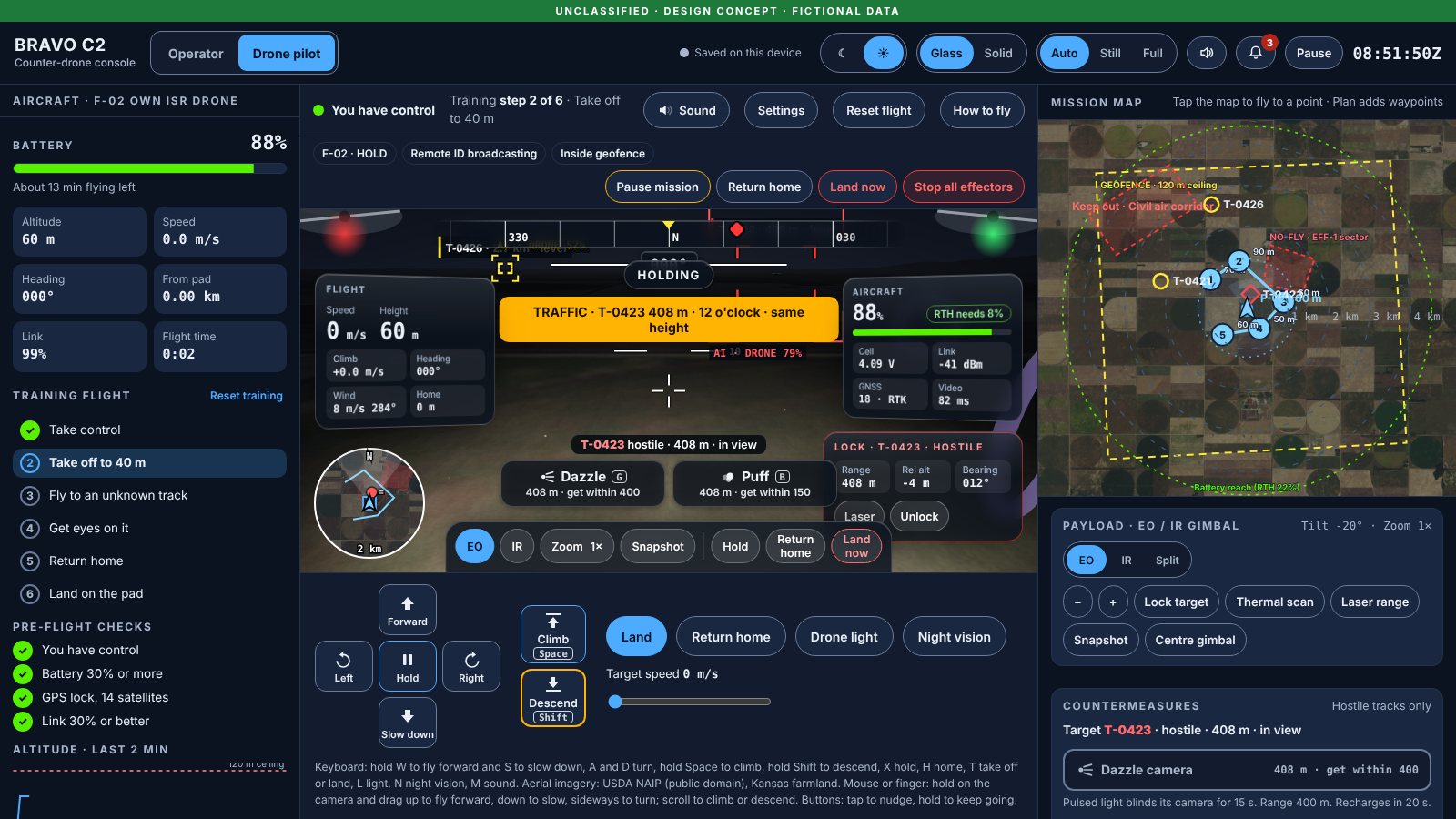
- AI object tags, thermal scan and gamepad in pilot mode
Before and after
Drag to compare
V1 OriginalV5 TeamV1 Original on the left, V5 Team on the right. Use the slider or arrow keys to reveal more of either.
Safety
A human stays in charge
Speed matters, but an engagement that cannot be undone has to be hard to trigger by mistake. These checks sit between the operator's decision and anything firing.
- Press and hold to authoriseA 1.5 second hold with mouse, touch, Space or Enter. Move away or let go early to cancel.
- 5 second abort windowAfter authorising, focus jumps to Abort. Escape also cancels.
- Friendly-fire checkBlocks the effect if a friendly drone is too close, and offers a one-tap "Move clear".
- Stale track checkRefuses to engage on data that is too old to trust.
- Weapons status and ROEA checklist shows what is still needed before Approve and act is enabled.
- Final check at fire timeSafety is checked again when the abort window ends, not only when the button is pressed.
- Emergency stopStops everything at once; resuming takes two deliberate steps.
- Lost link handlingThe drone holds, then returns home, with a clear banner and countdown.
Testing
I tested it like an operator would
Scripted task run
Six real operator tasks, scripted and run with a real browser on every version. The script clicks and holds like a person does, so it found problems a checklist would not.
What it found
Lost clicks. The threat queue refreshes every second. A click that landed during a refresh was silently dropped. Fixed by remembering which row the pointer went down on.
A safety block nobody could see. A friendly drone patrolling near the site correctly blocked engagement, but the reason was read out and then talked over by the next alert. Urgent alerts now wait their turn, and the block shows on screen with a "Move clear" action.
| Task | V1 Original | V2 Pro | V3 Glass | V4 Focus | V5 Team |
|---|---|---|---|---|---|
| 1 Spot the most urgent threat | Pass | Pass, with a finding Ranked an unknown about to reach the site above the next hostile | Pass | Pass | Pass |
| 2 Identify an unknown track | Pass | Pass | Pass | Pass | Pass |
| 3 Respond to a hostile | Pass | Fail Click lost during queue refresh | Pass | Pass Blocked by a patrolling friendly drone until the fix | Pass Passes, with the 5 s abort window |
| 4 Take off to 40 m | Pass | Pass | Pass | Pass | Pass |
| 5 Fly out and return home | Pass | Pass | Pass | Pass | Pass |
| 6 Check who is on watch and leave a note | Pass | Pass | Pass | Pass | Pass |
V1 and V2 are kept exactly as they were built, so their issues are left in place as a record. Fixes were made in V3 to V5.
Screen reader walkthrough
I ran the whole kill chain with the keyboard only, recording what a screen reader would announce at every step: every focus change, every accessible name and every live announcement.
Everything was announced clearly, and hold-to-authorise worked with Space. But two things were wrong:
- It took 20 to 37 Tab presses to get from the selected threat to the authorise button.
- When the abort window closed, focus was lost to the top of the page.
Now pressing R on a threat jumps straight to its response, and focus returns to the threat queue once the action fires or is aborted.
- TabEnterSkip to threat queue
T-0423, Hostile, Quad-rotor, 79 percent, threat score 95, 49 seconds to site
- EnterSelect the threat
T-0423 selected
- RJump to the response, Soft-kill is recommended and already chosen
Soft-kill (RF), EFF-1, ready, recommended
- TabTabAuthorise button and how to use it
Press and hold to authorise. Hold 1.5 s with mouse, touch, Space or Enter, then release.
- Hold SpaceProgress is spoken
Holding. Release to cancel … Release to authorise.
- ReleaseFocus moves to Abort
Soft-kill on T-0423 fires in 5 seconds. Press Abort to cancel.
- WaitFocus returns to the queue
Soft-kill executed on T-0423.
Automated accessibility
axe-core checks on every main screen of every version, dark and light themes, desktop and phone, including the dossier, pilot view, abort window, emergency stop and lost link states. No violations remain.
Glass contrast, measured
Translucent panels change contrast as the map moves behind them, so I measured text against the actual pixels underneath and tuned the blur and tint until it passed AA.
Usability test lab
A facilitator tool for real sessions: six tasks in a balanced order, timers, errors, SEQ and SUS scores, charts and a CSV export.
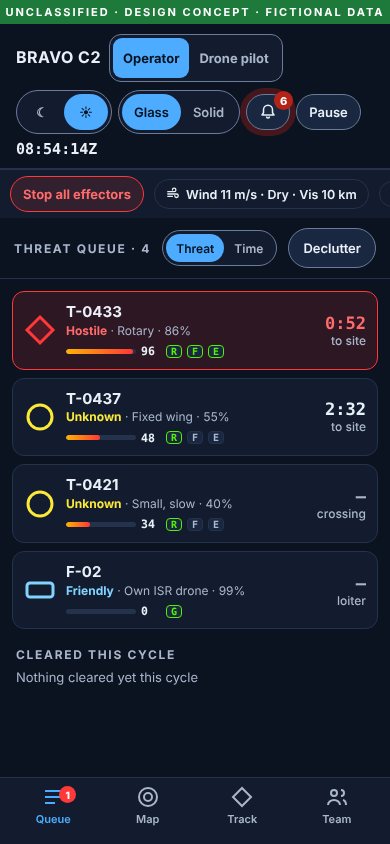
Across devices and modes
Built for the whole shift
Leadership
How I led the work
I ran Bravo C2 as its design lead: I owned the problem, the standards and every decision about what shipped. Claude worked to my brief as a research and build partner, which let me iterate at the speed of a full team while I stayed focused on the design decisions.
Problem framing
Defined the operator and pilot roles, the detect, identify, decide and act flow, and the constraints: WCAG 2.2 AA, phone to wide desktop, multi-user and persistent.
Research direction
Commissioned research before every new direction, curated competitive references, including an award-winning control centre, and filtered them to functions that solve a real operator problem.
Safety model
Specified how a human stays in control: deliberate authorisation, an abort window, friendly-fire and stale-data checks, and an emergency stop. Then required the gaps from my safety review to be built, not noted.
Evaluation
Reviewed every build in role, as operator and as pilot, on desktop and phone. Turned what broke down into precise problem statements: 19 in version 1 alone, from inconsistent Take off rules to panel flicker.
Standards and challenge
Held the accessibility bar. When the glass treatment passed automated checks, I challenged whether it truly met WCAG. It didn't, and it was measured and fixed.
Test strategy
Designed the usability study: six operator tasks, counterbalanced order, time, errors, SEQ and SUS. Directed the scripted runs and the screen reader walkthrough that found the issues above.
| Stage | I led | Claude executed |
|---|---|---|
| Framing | Brief, user roles, priorities and the quality bar | A working console and scripted threat scenario built to that brief |
| Exploration | Which directions to explore, and which concepts went forward | Research synthesis and concept images for review |
| Evaluation | Heuristic and task-based reviews, and the issue list for each round | Root-cause diagnosis and implementation of fixes |
| Safety | The safety model and acceptance of each safeguard | Implementation of checks, abort and emergency stop |
| Validation | Usability tasks, measures and accessibility standard | Test lab build, scripted runs and automated audits |
| Release | What shipped, and keeping every version for comparison | Publishing each version as its own artifact |
What directing AI taught me
AI shortens the distance between a decision and a working build, which makes judgement the bottleneck. The quality in Bravo C2 came from evaluating each build in role and defining precisely what had to change. It's the same discipline I bring to setting design direction for development teams.
What I'd do next
Run the test lab with five or more operators, compare the versions on time, errors and SUS, then consolidate the strongest patterns into a single console.
Bravo C2 is a self-initiated design concept. It is not affiliated with, endorsed by or built for Acacia Systems, the Australian Defence Force or LAND 156. All tracks, places and data are simulated.